Unofficial community tool · Not affiliated with Saber Interactive
Save Editor · Vehicle Editor · Mod Menu
Roadcraft Editor Suite
Deep save editing, vehicle tuning via default_other.pak, and built-in plus custom mods—unified in one Windows app. Quick MSI installer, automatic backups, changelog-aware restore, and a fully offline workflow.
Install Custom Mod · Installed Mods · Backups tabs
Restore paths keep originals when you disable a mod
Screenshots
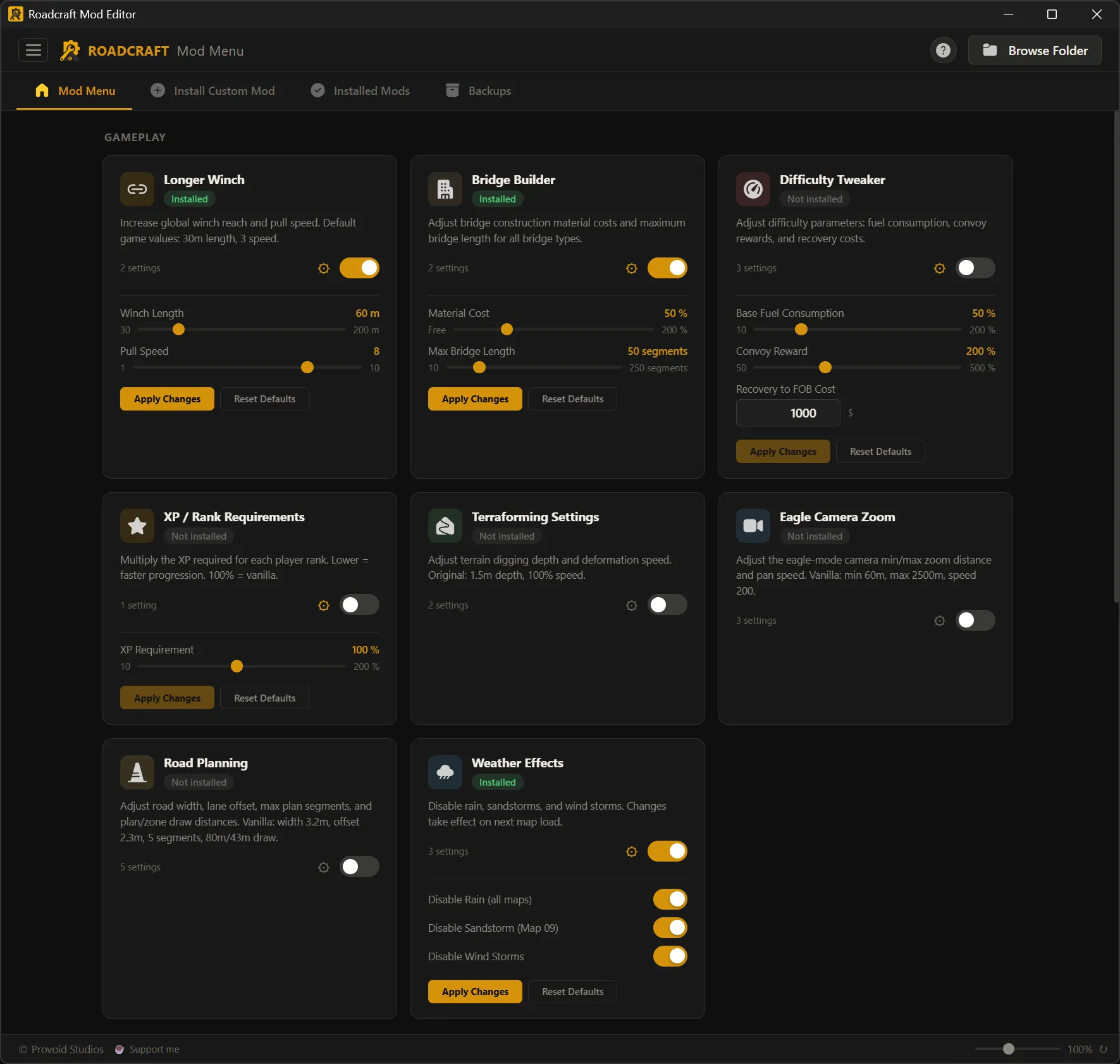
GameplayBuilt-in rules and simulation tweaks
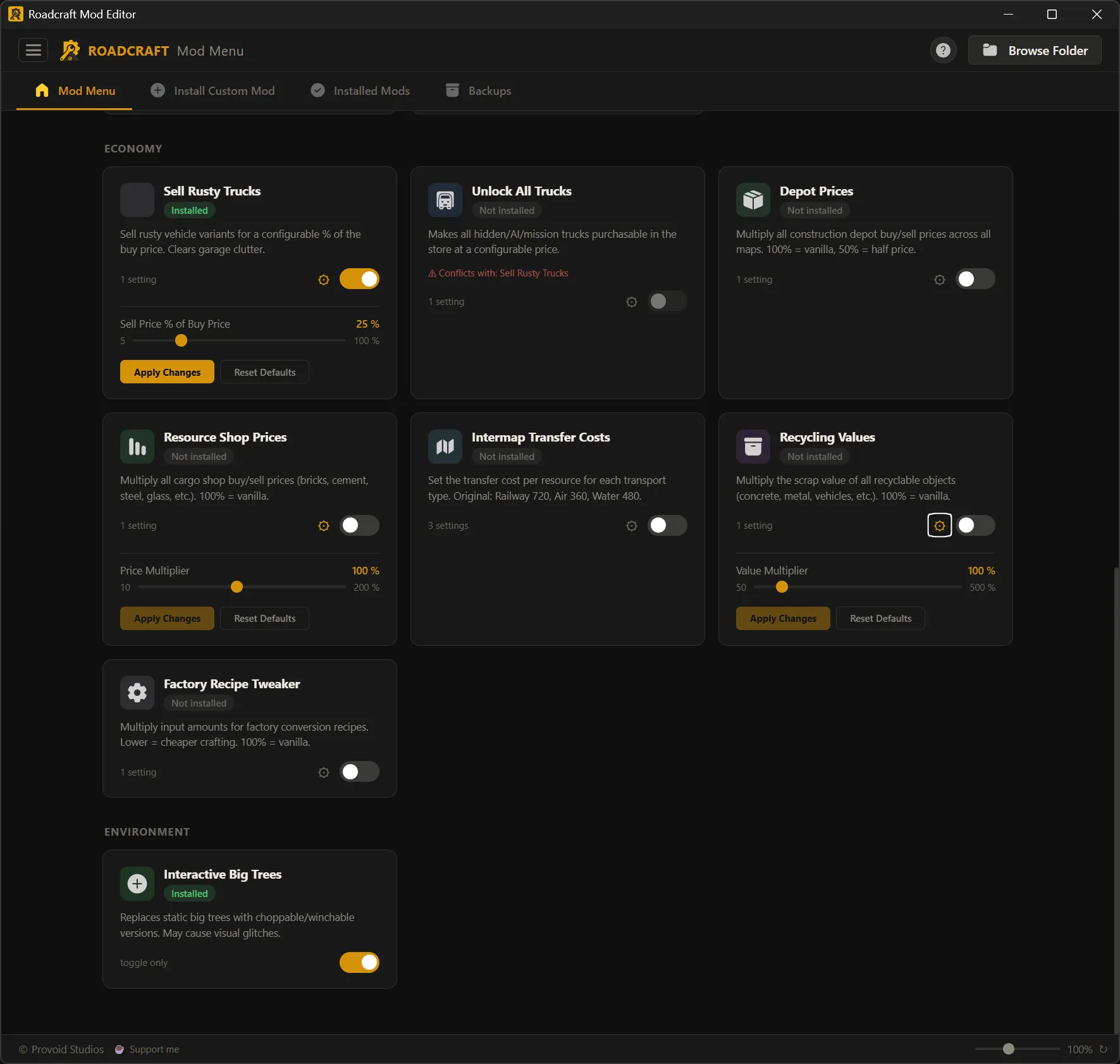
Economy & EnvironmentEconomy sliders and Environment mods from one capture
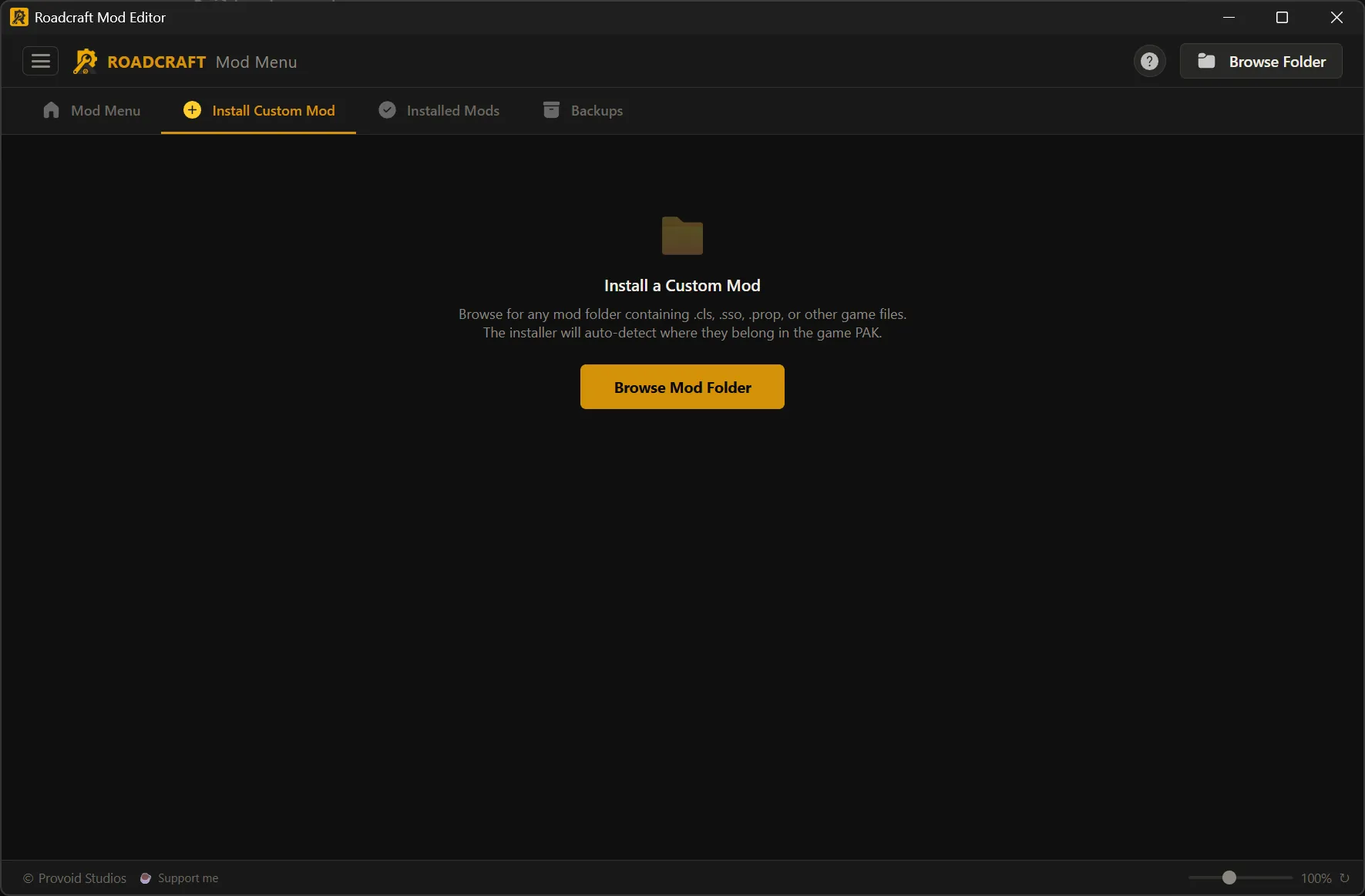
Install custom modPoint at a folder; paths validate into the PAK
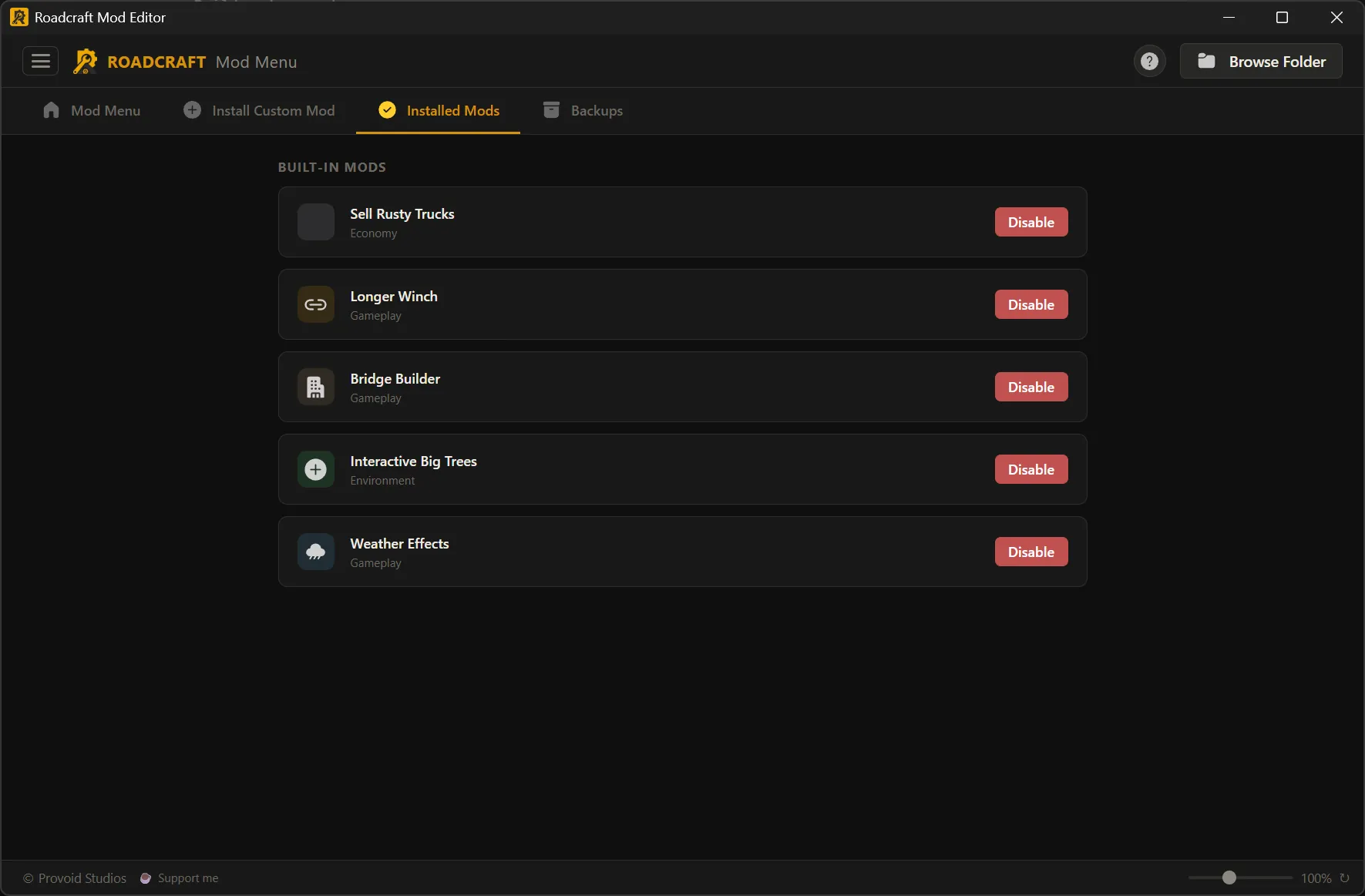
Installed modsSee what is active; disable safely
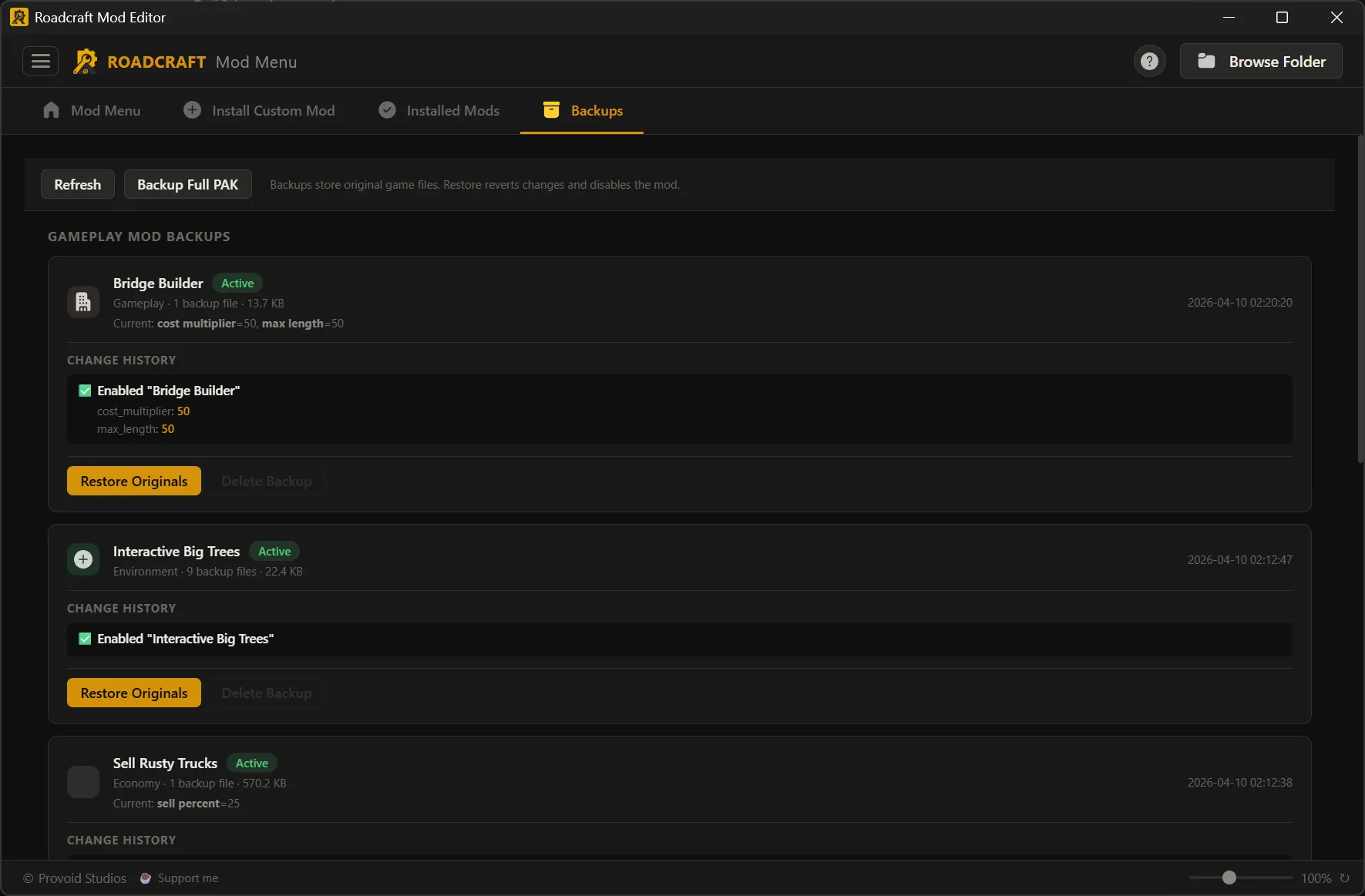
Mod backupsRestore stock assets per mod
Save Editor
Every tab, at a glance
Same order as the in-app top tabs — click a card to open a full-size screenshot.
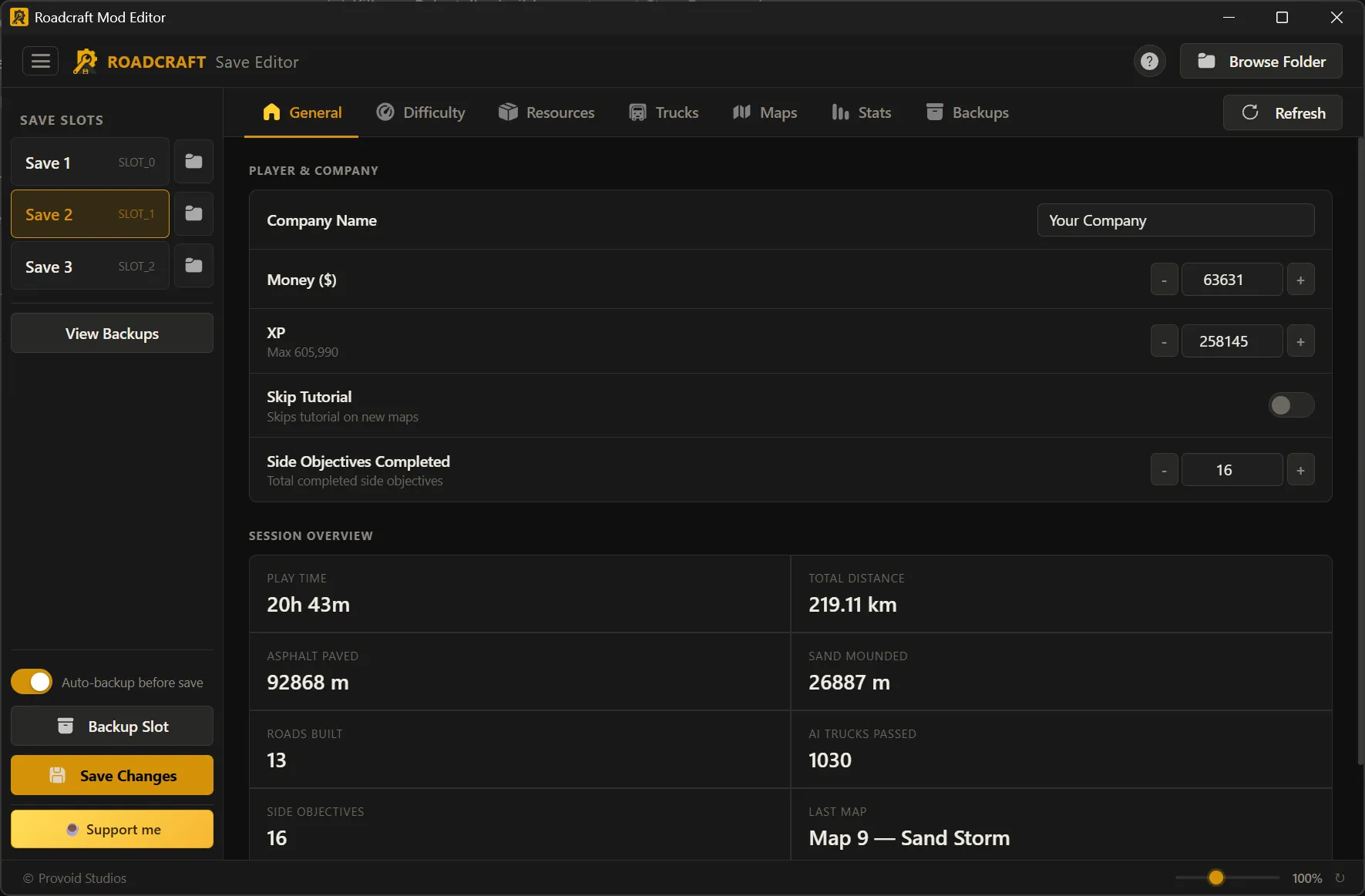
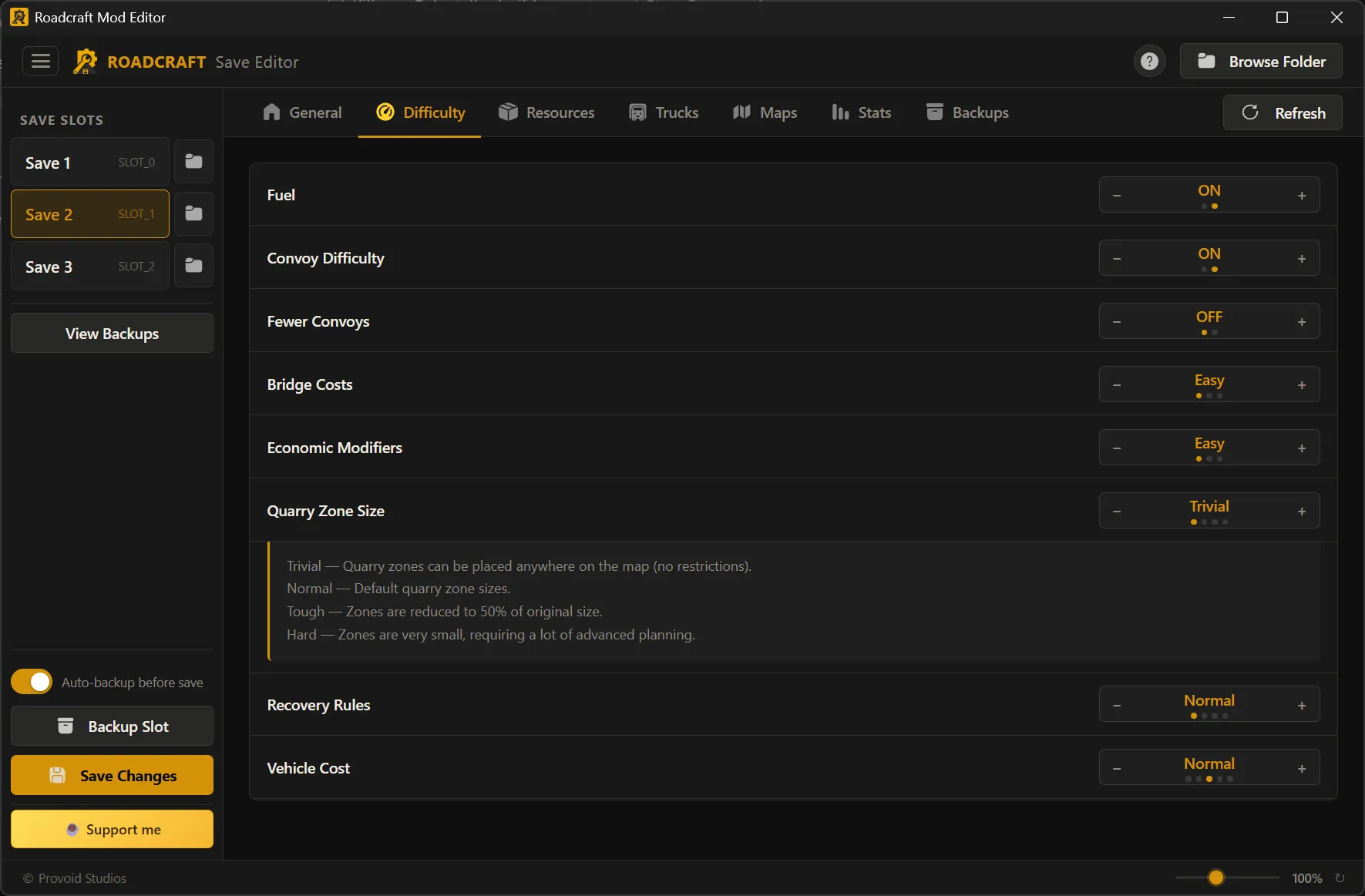
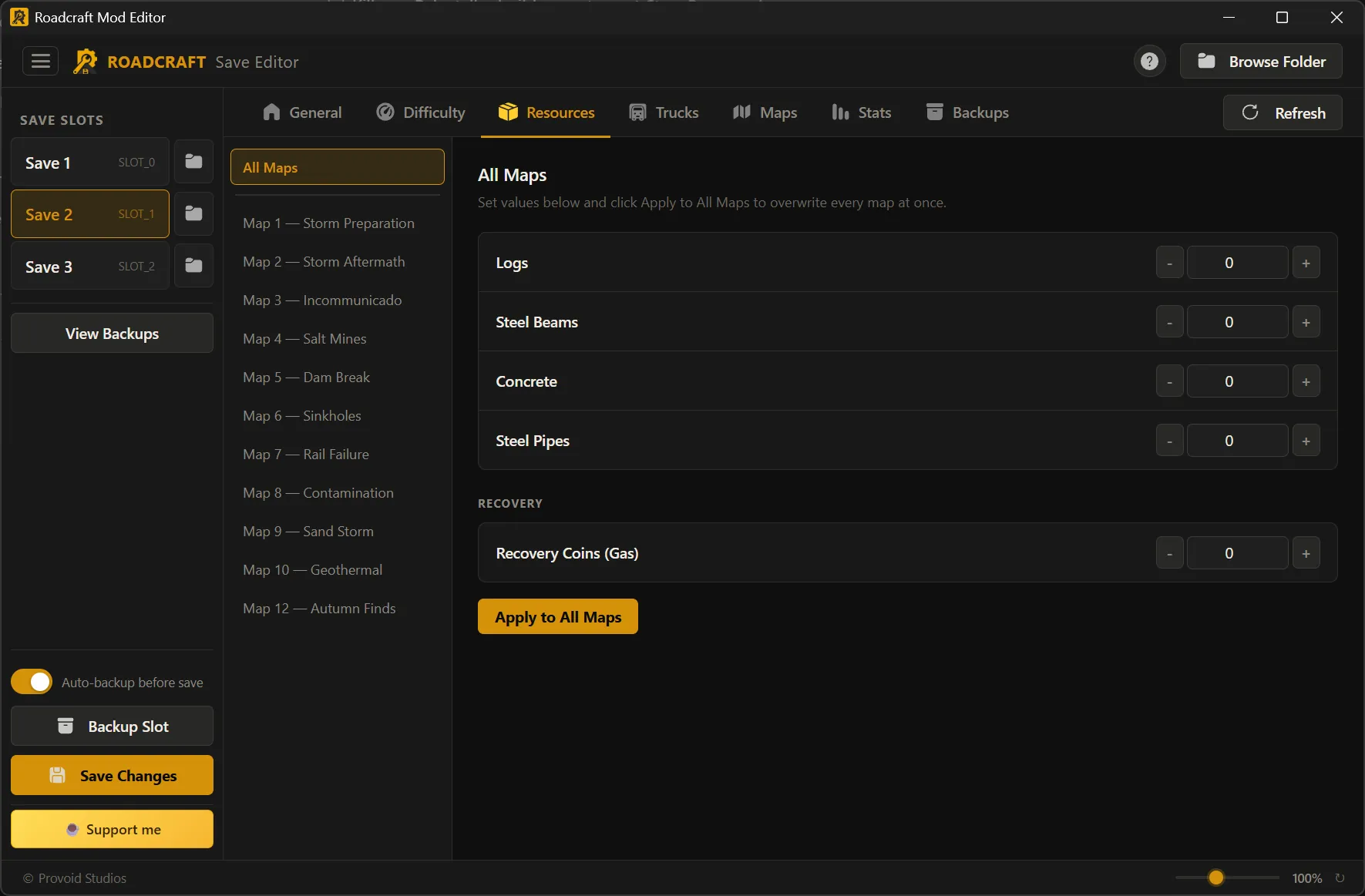
Save Editor — every tab
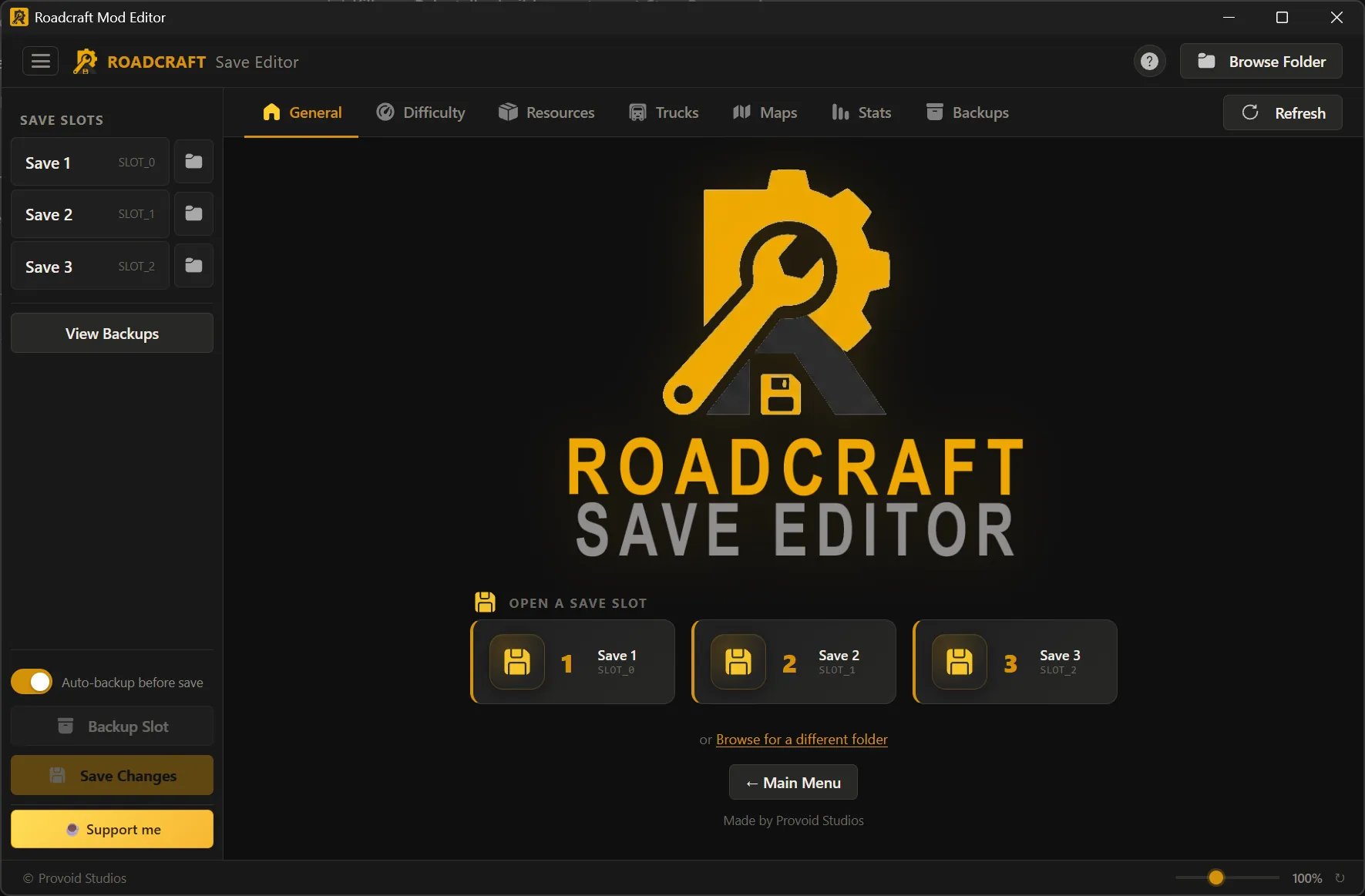
Load a slot from the sidebar, then work through General → Backups. Auto-detect finds Steam saves; you can browse any folder if your slots live elsewhere.
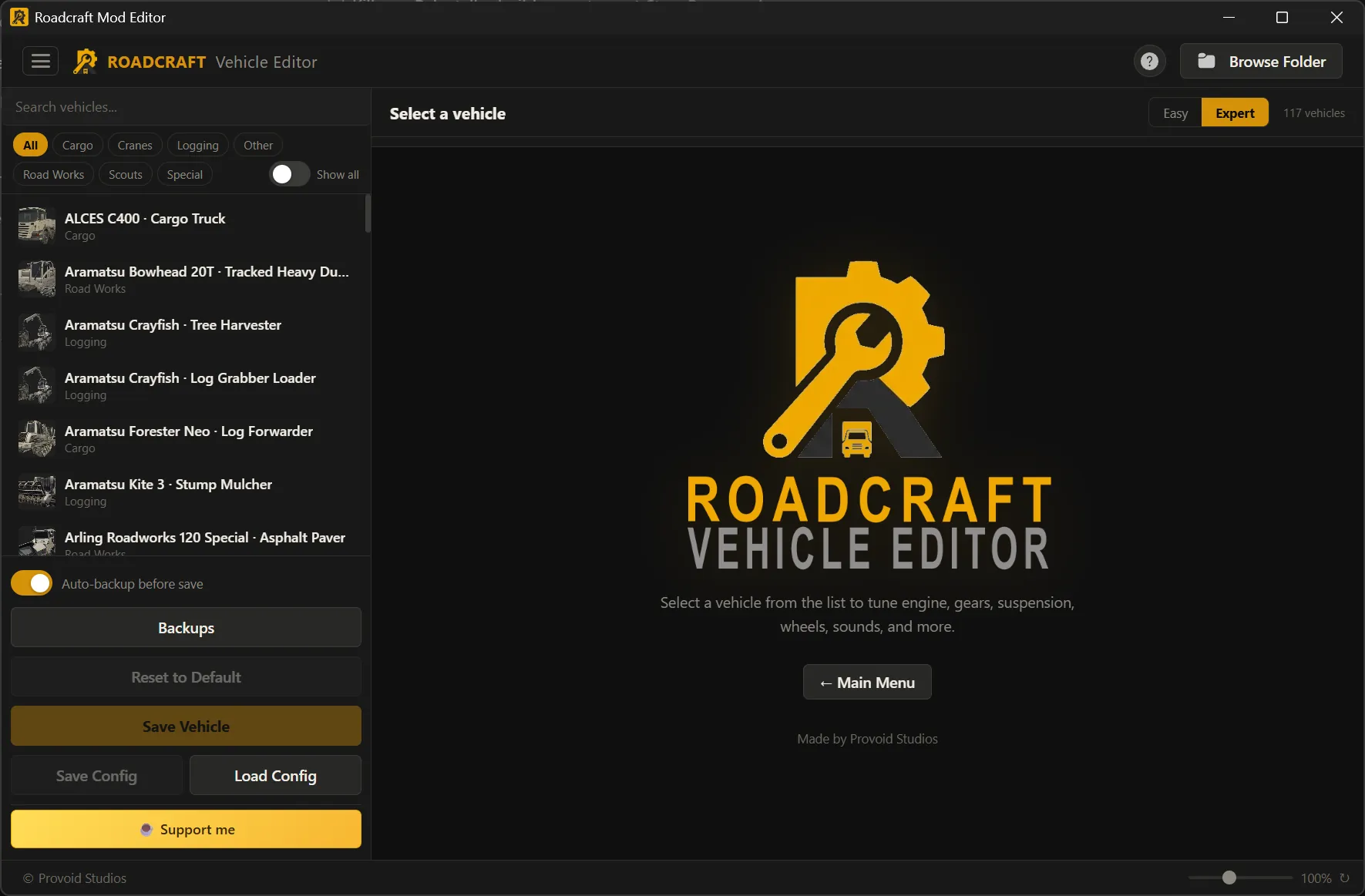
Vehicle Editor
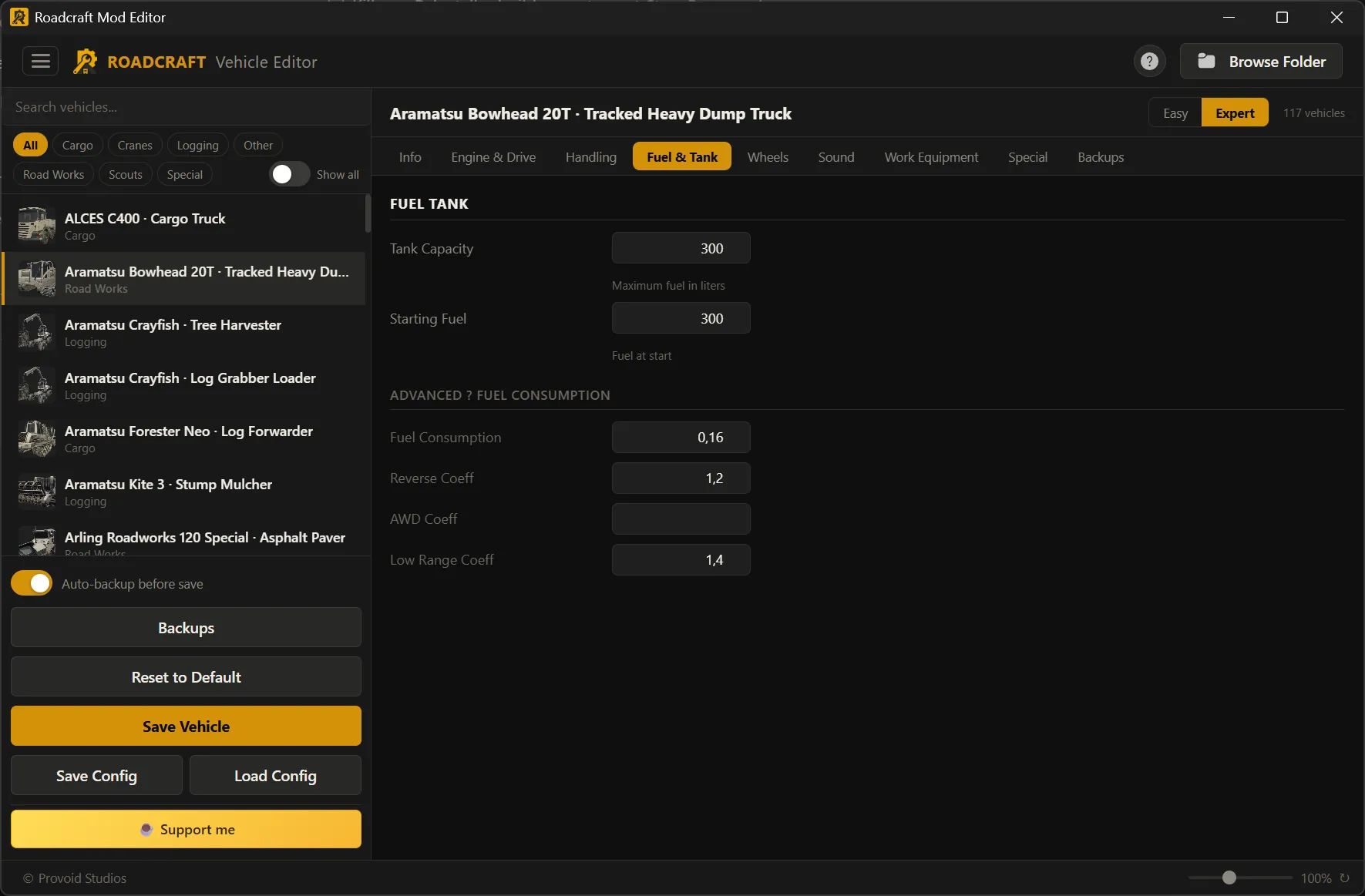
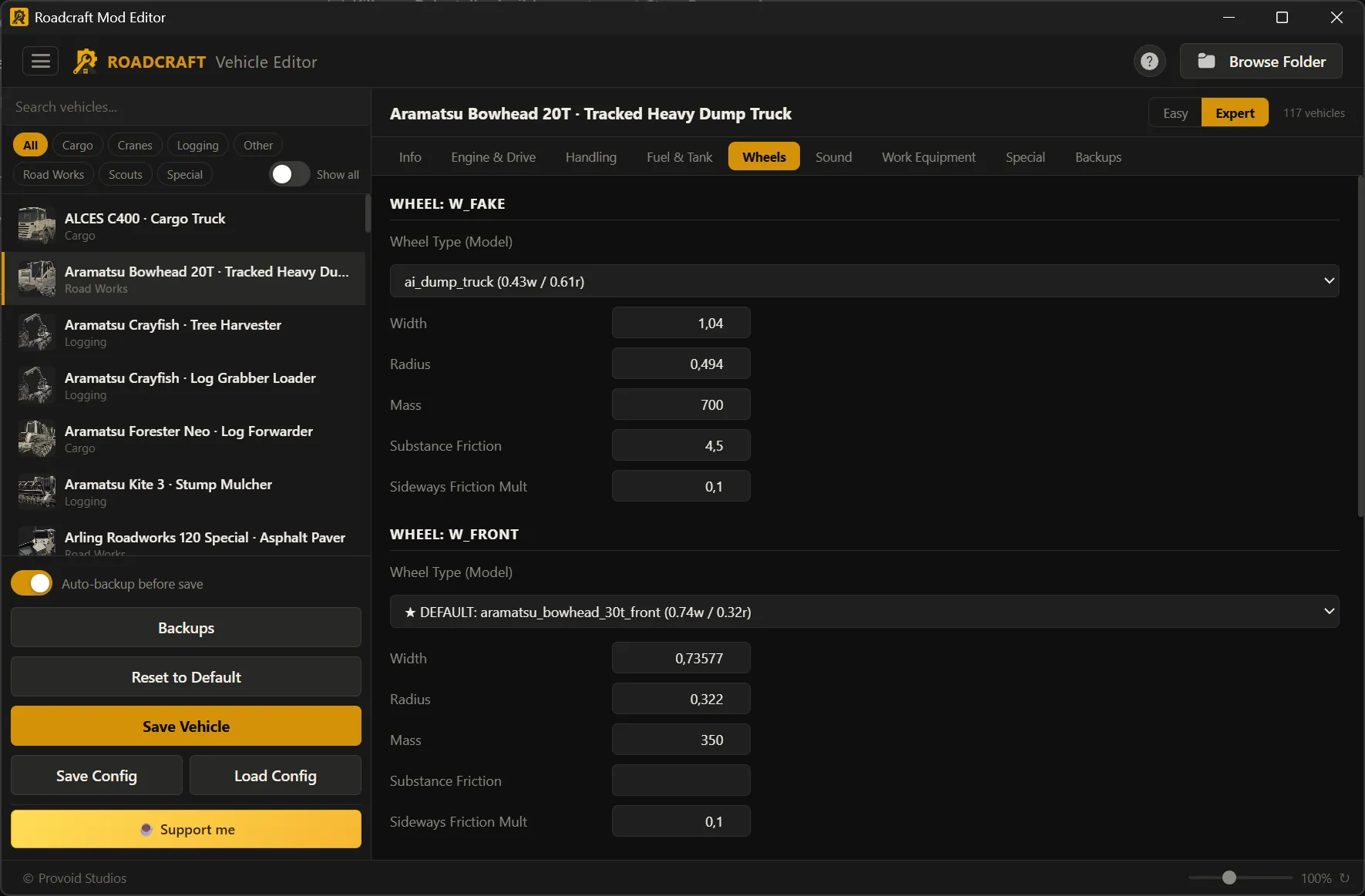
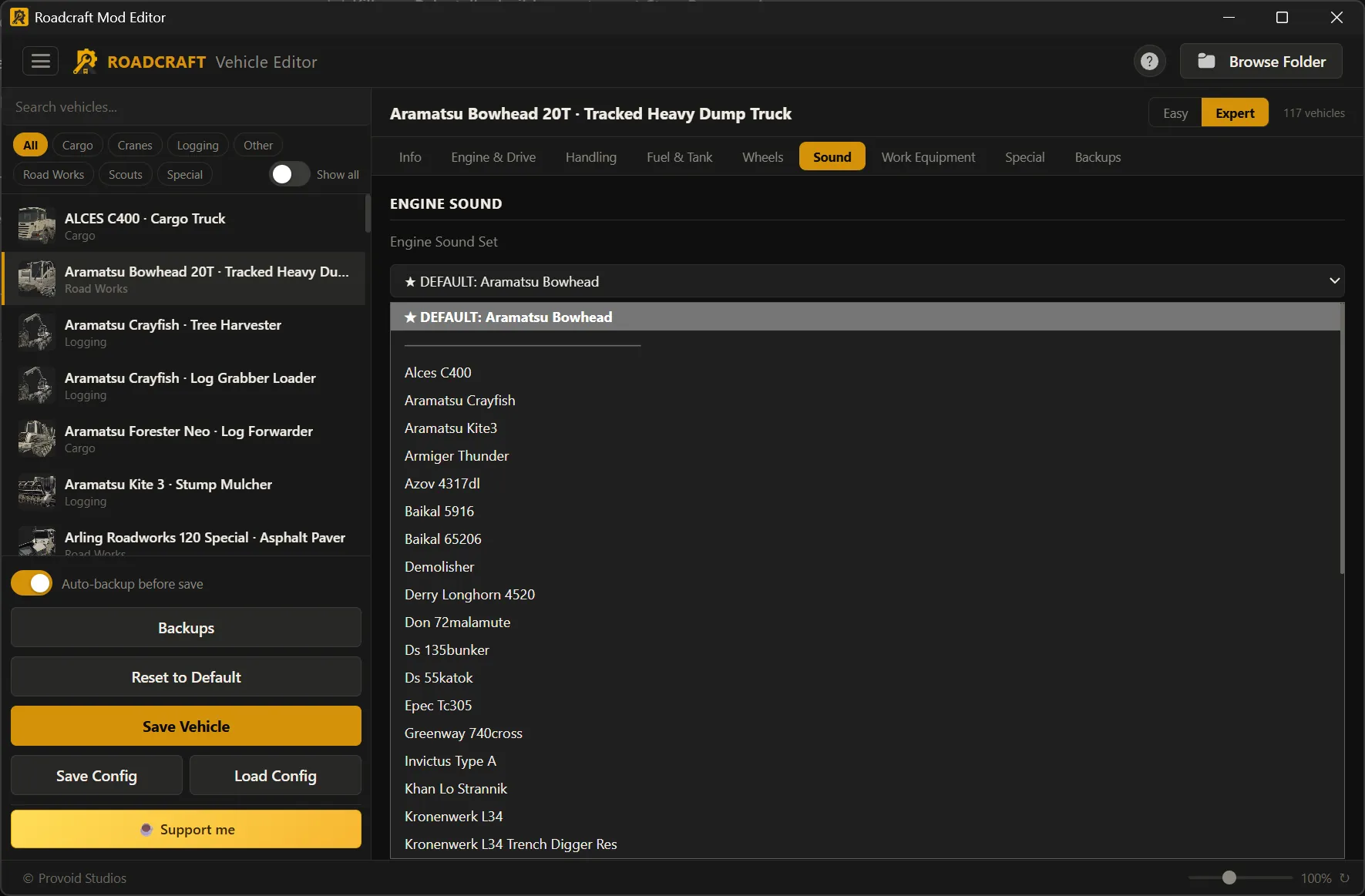
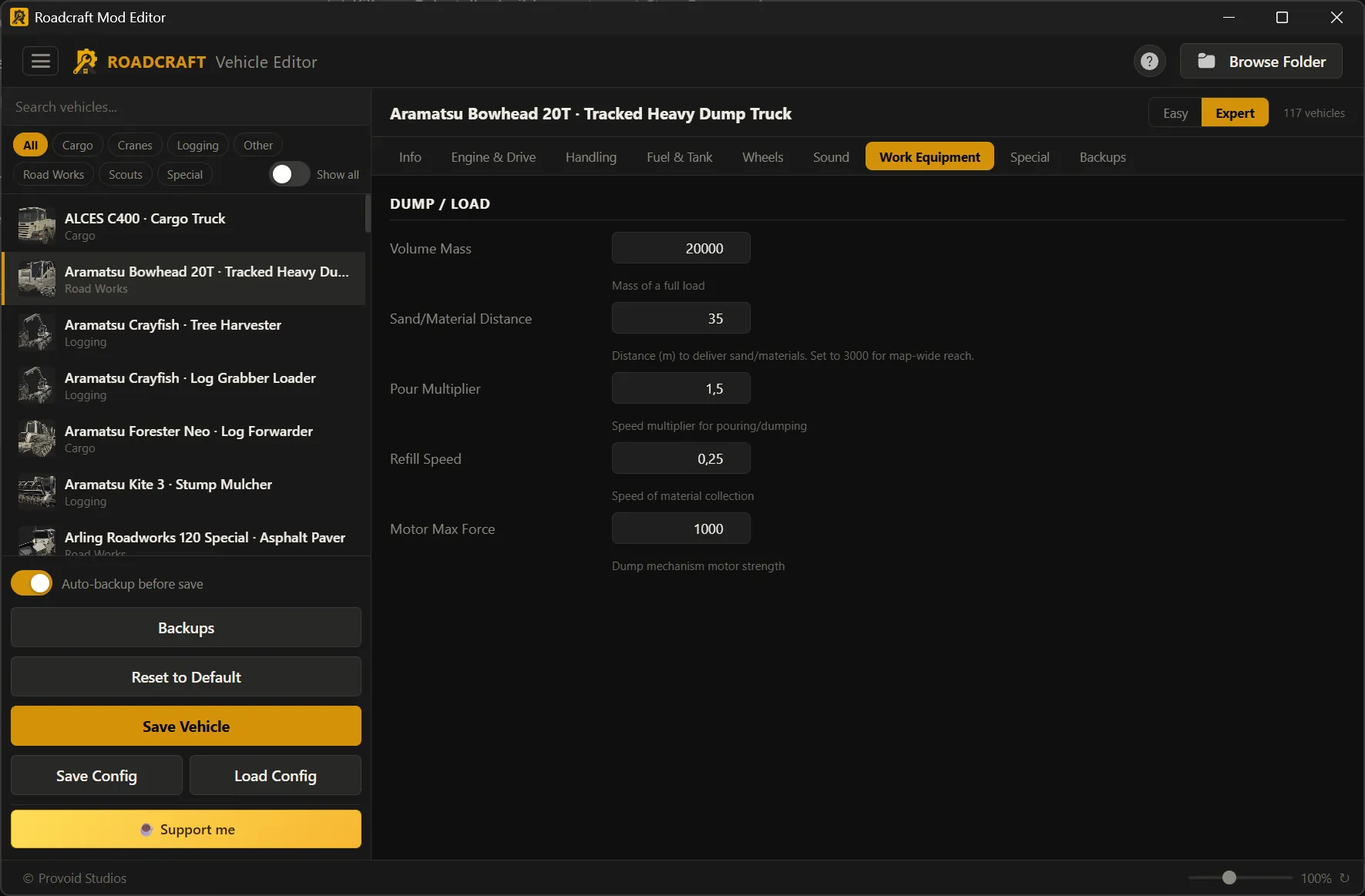
Every tab, at a glance
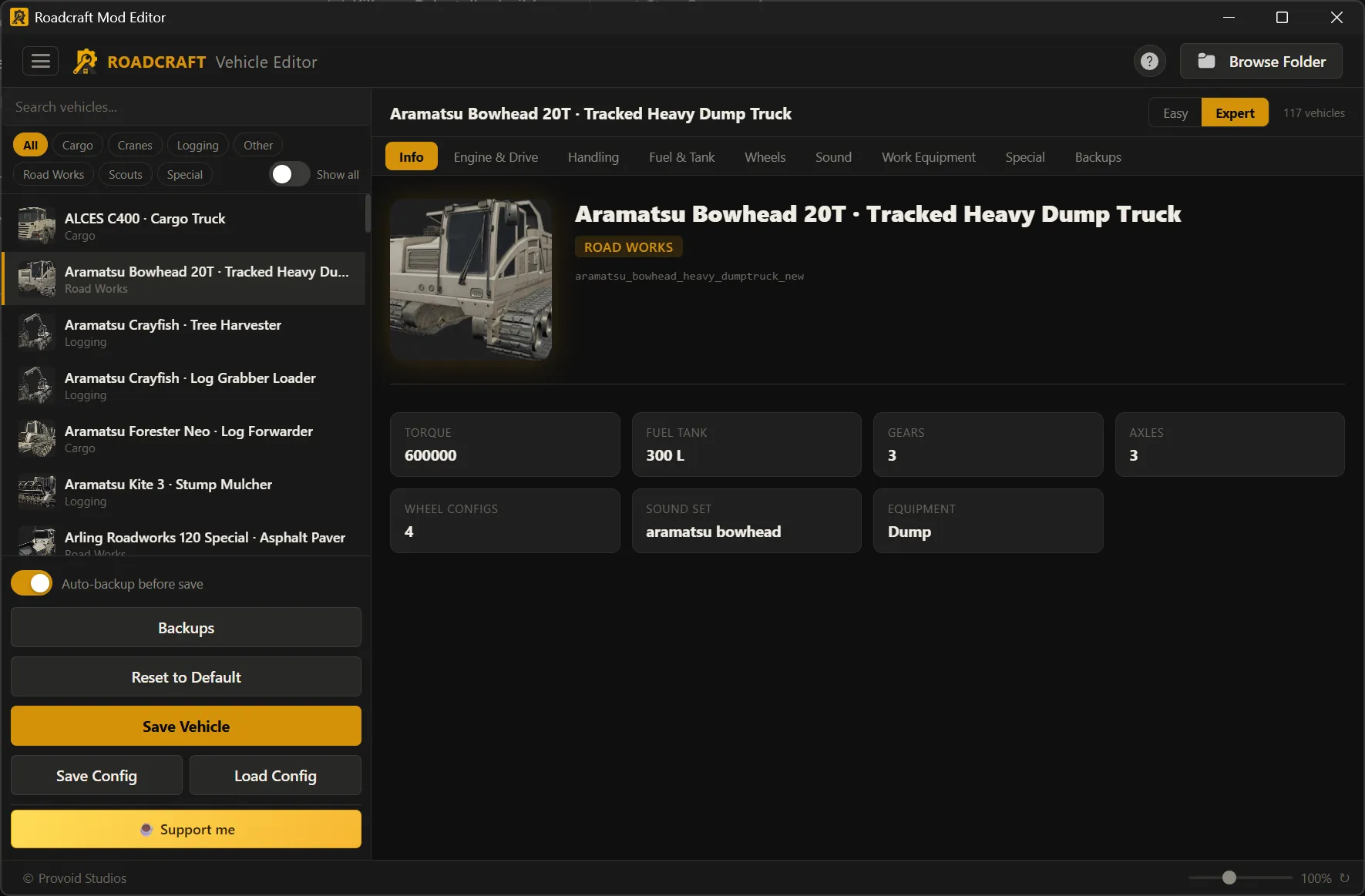
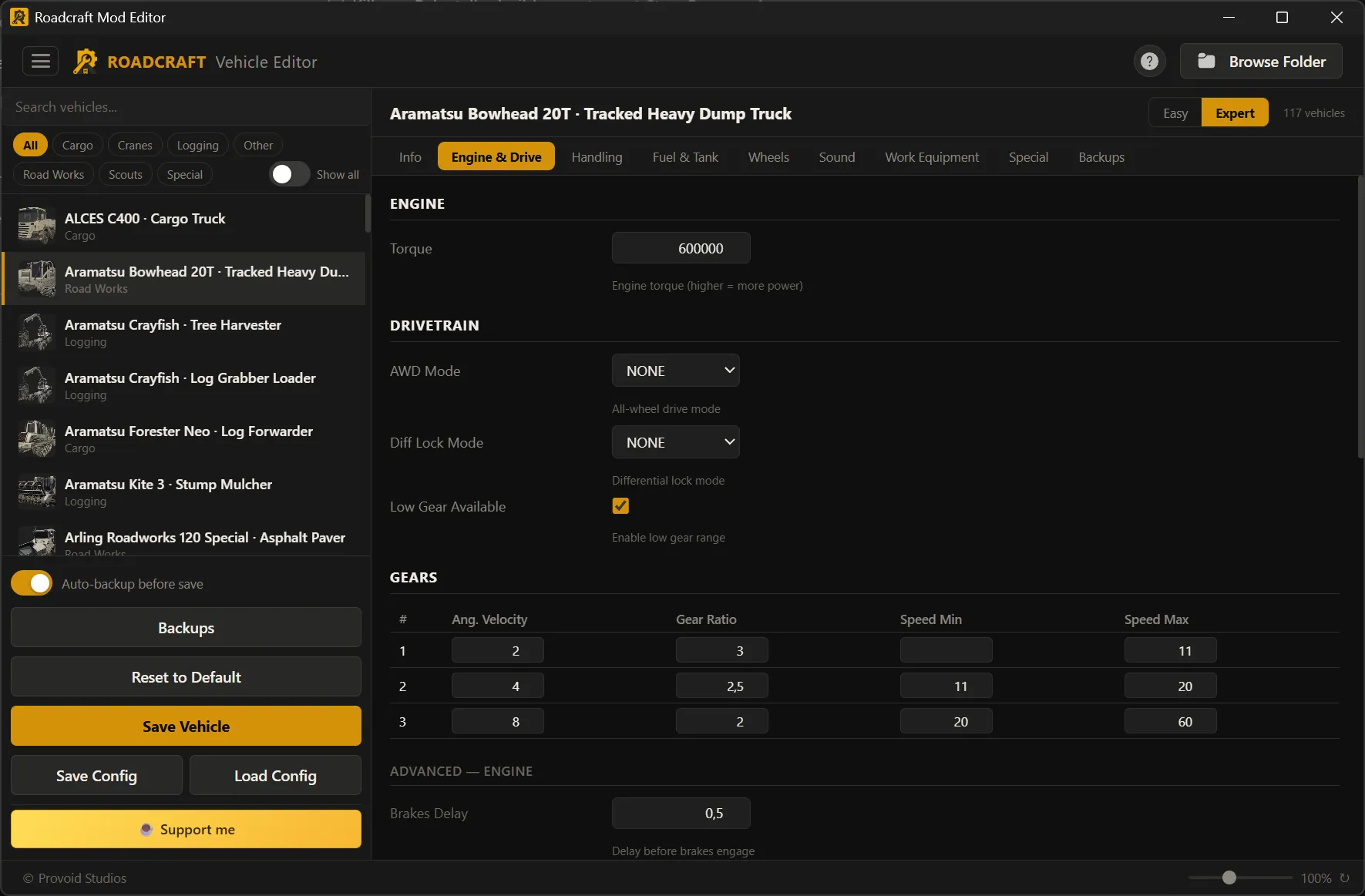
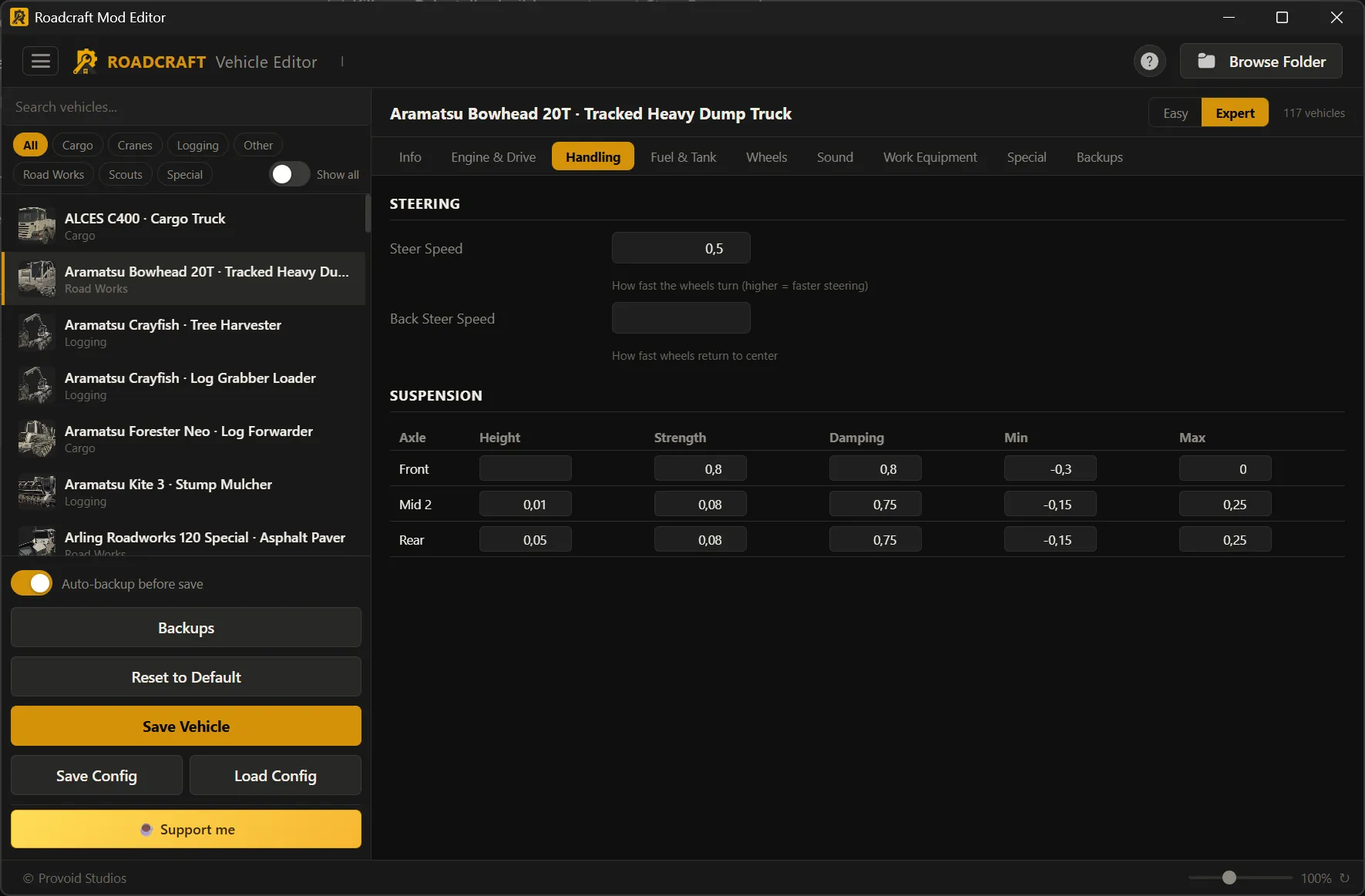
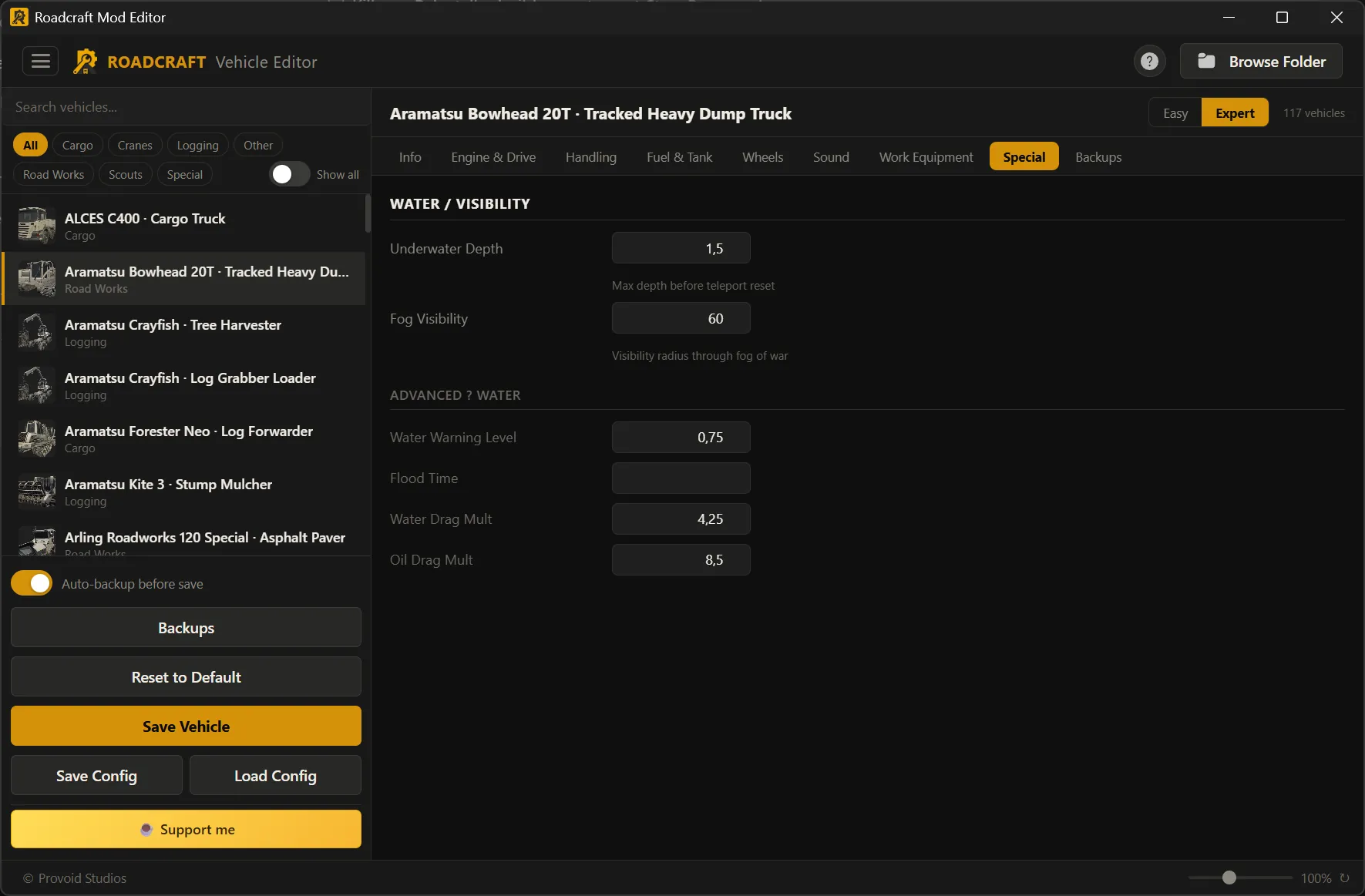
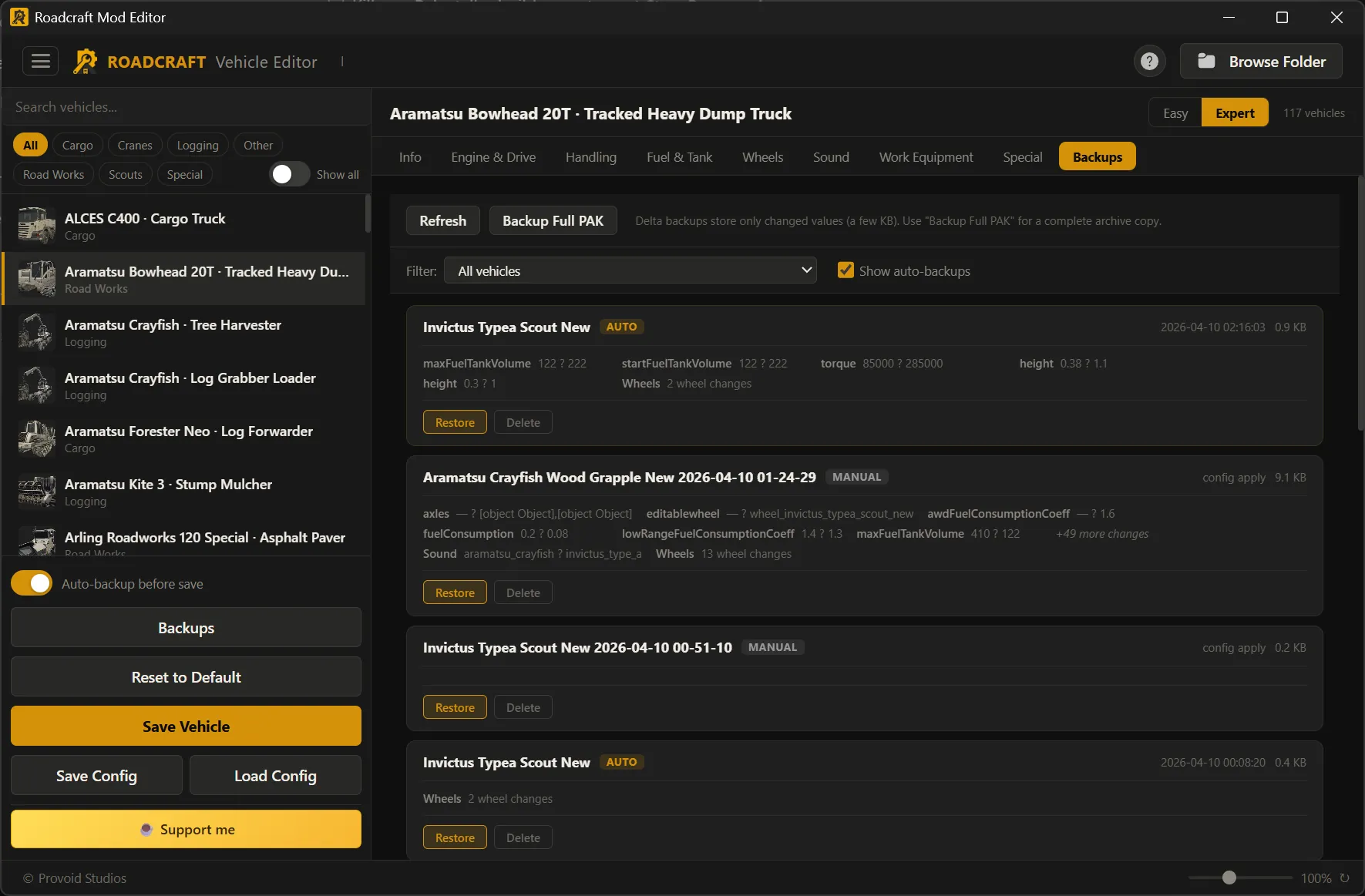
Same layout as Save Editor — click a card to open that tab’s screenshot.
Screen recording · Vehicle Editor
Quick demo
Mod a vehicle in under a minute
Watch the full flow: open a vehicle, adjust tuning, hit save and enjoy your mod!
You are safe with automated backups.
Vehicle Editor
AI vehicle tuning
Describe the truck you want in plain language, review every property before it touches the game, then apply — completely free in the suite.
Completely free
AI vehicle modding
Switch to AI mode, choose what the assistant may change (engine, drivetrain, handling, wheels, sound, and more), and describe the build you want. The editor proposes a named tune; open Review Changes to see a full diff — default vs new values — then apply only when you are happy.
Natural-language requests like “stronger and better off-road”
Transparent table: property, default, and proposed value
Optional refine pass before you commit
AI workspace — scope, prompt, and generated tune with one-click review.
Review — same diff-style preview as other configs: nothing hidden.
Vehicle Editor — every tab
Pick a truck in the sidebar, switch Easy vs Expert, edit CLS-backed values, write to default_other.pak with delta backups and fleet snapshots.
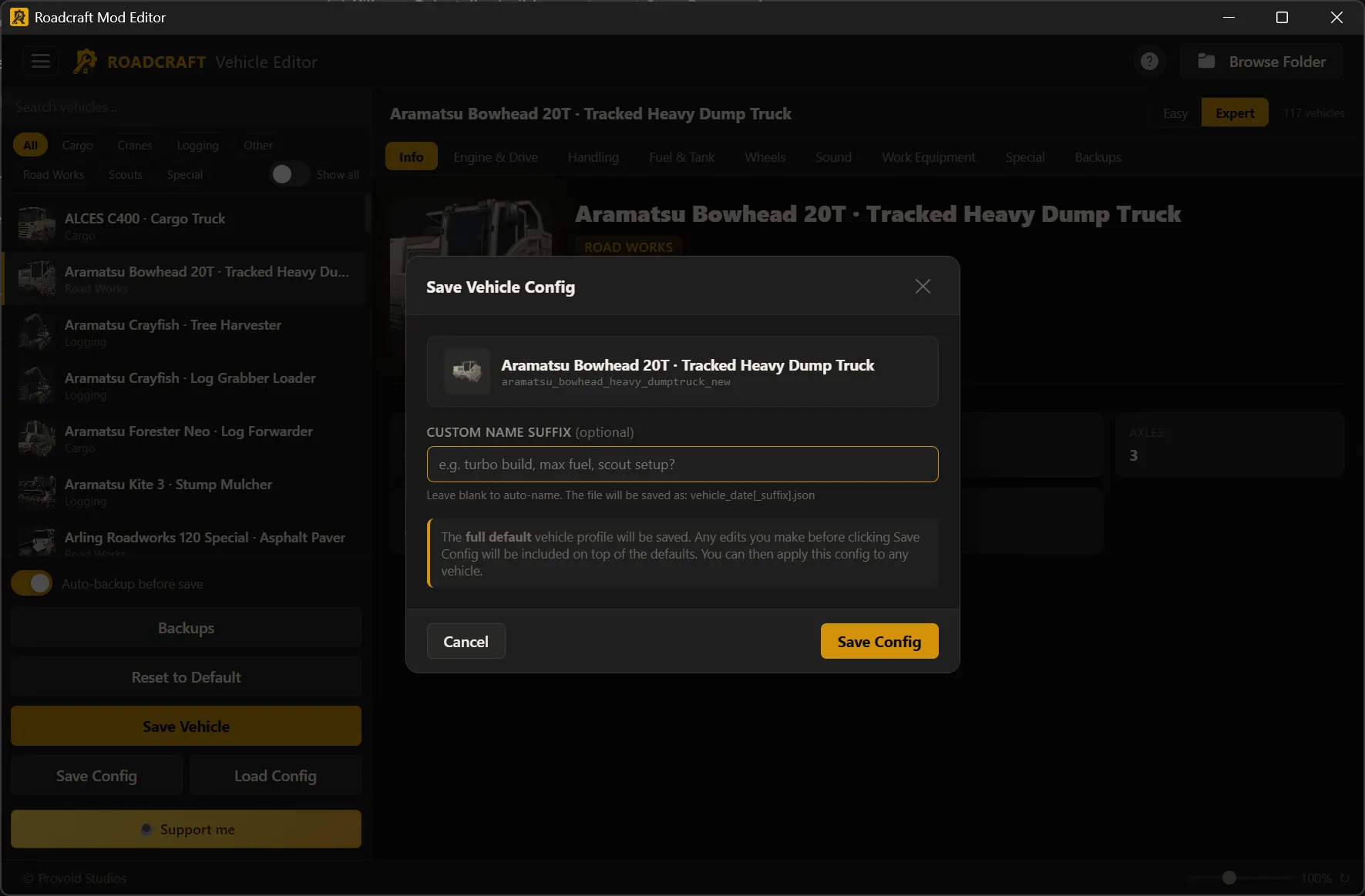
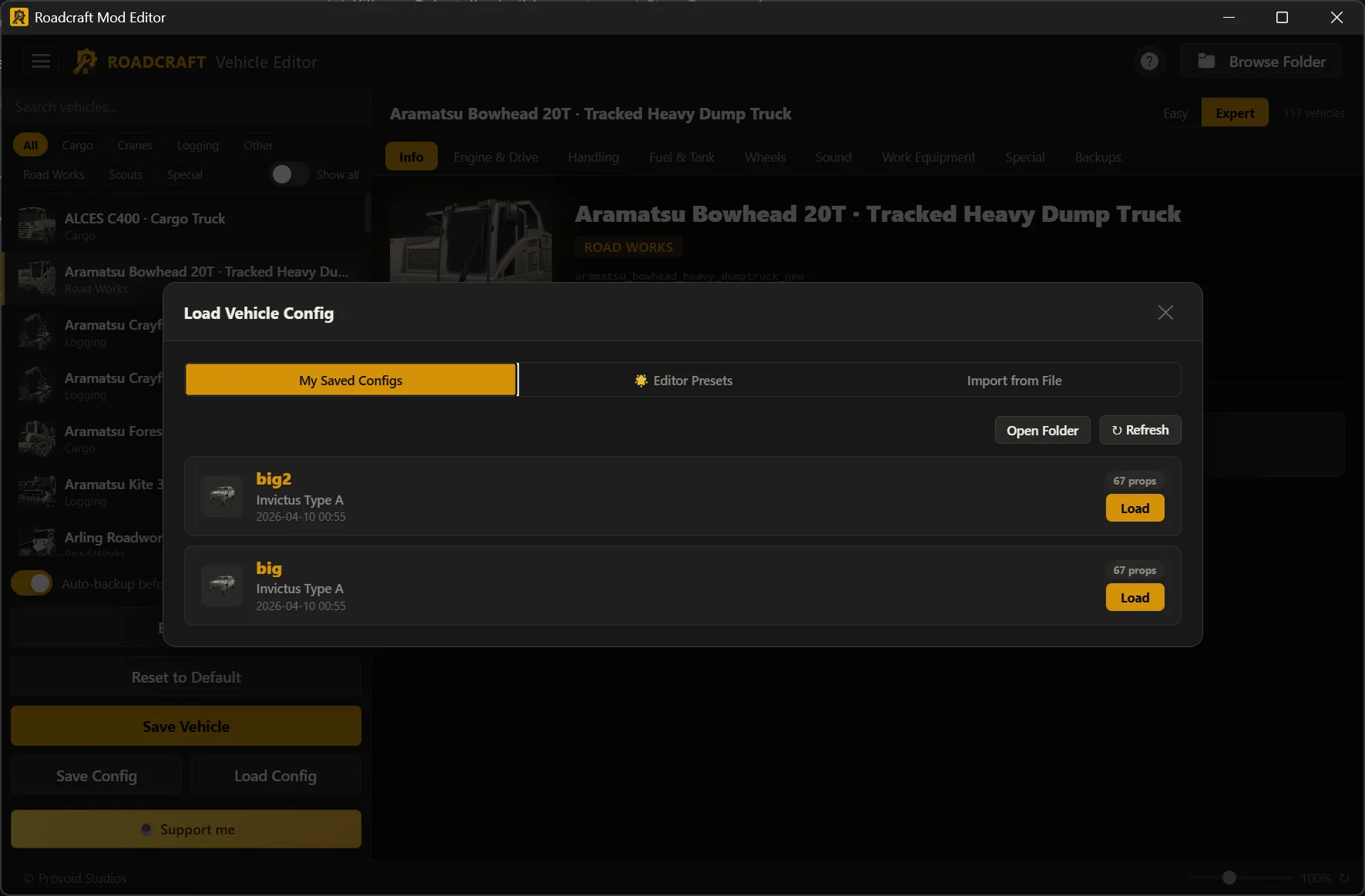
Vehicle configs
Share builds with friends in two clicks
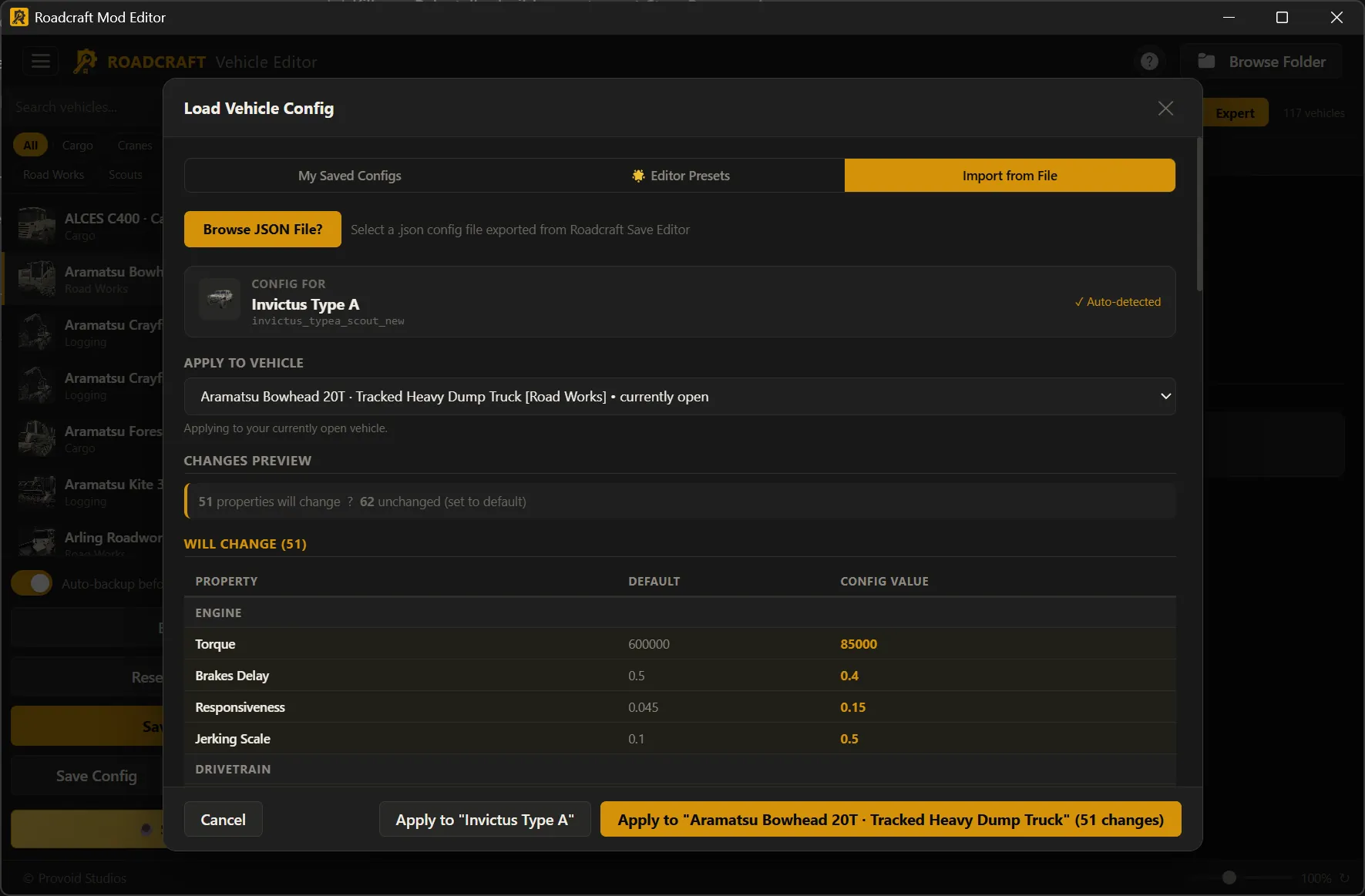
Save your tune as a portable .json file and send it to anyone. They open Load Config → Import from File, pick your file, and see exactly what will change before applying — no guesswork, no manual copying.
Save — one JSON file carries the whole profile; optional suffix keeps versions organized.
Load — import their file, see what changes (and what stays default), then apply to the matching truck or another vehicle.
Mod Menu
Categories & flows, at a glance
Built-in categories plus install / installed / backups — click a card or flow line to open that screenshot.
Mod Menu — categories & flows
Built-in Saber mods with sliders/toggles, custom folder install into the PAK, installed list with safe disable, and mod-specific backup cards.
Backups & safety
Same rollback story everywhere
Autos, changelogs, and restore paths for saves, vehicles, and mods.
Save slots
Full slot snapshot before each write; readable changelogs in the Backups tab.
Vehicle / PAK
Per-vehicle deltas, optional full default_other.pak archive, fleet snapshots.
Mods
Stock files kept so disable/uninstall can restore shipped assets.
Pre-restore copy
Current state saved before any overwrite, including save restores.
Auto backup
Timestamped copy of the whole slot before disk writes.
Changelogs
Field-level before/after when the editor can infer them.
One-click restore
Restore from list; another safety copy runs first.
Manual backups
Trigger anytime or open the backup folder in Explorer.
From download to first edit
Local-only: your files never leave the PC. One portable window — no separate browser install.
1
Download & install
Grab Roadcraft Editor Suite Installer.msi (~18 MB) and run the quick setup wizard — takes seconds, adds a Start menu shortcut.
2
Launch
Open Roadcraft Editor Suite from the Start menu to reach the main menu: Save Editor, Vehicle Editor, or Mod Menu — same three tiles as this site’s hero.
3
Paths
Saves usually auto-detect. Vehicle editing may ask for your PAK path once; mods resolve into the game’s pack structure.
4
Edit
Use tabs and sidebars as in the screenshots. Expert mode exposes every CLS field the editor knows about for vehicles.
5
Save & verify
Let backups finish; read the changelog if you want proof of what changed before you launch Roadcraft.
6
Switch modes
Return to the main menu anytime — tune a truck, tweak a mod, then jump back to saves without closing the app.
Community
Join the Discord
Get help, share ideas, and hang out with other Roadcraft Editor Suite users — help & support, feature suggestions, config sharing, and building together.
Help & support — ask questions and troubleshoot with people who use the editors daily.
Suggest & feedback — shape what gets built next.
Share configs — show off truck tunes, mod setups, and workflows.
Community — meet players and builders; we're stronger together.

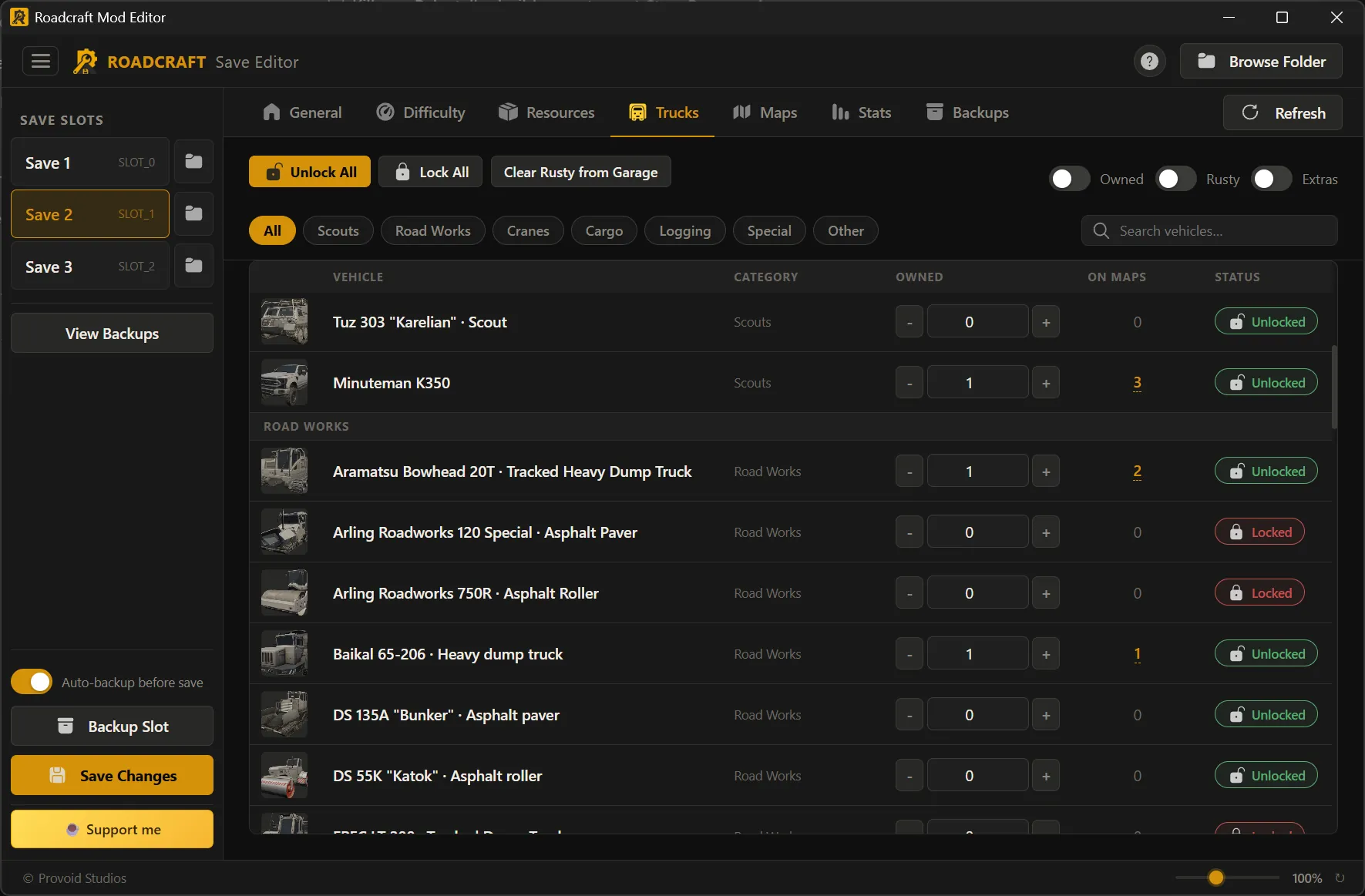
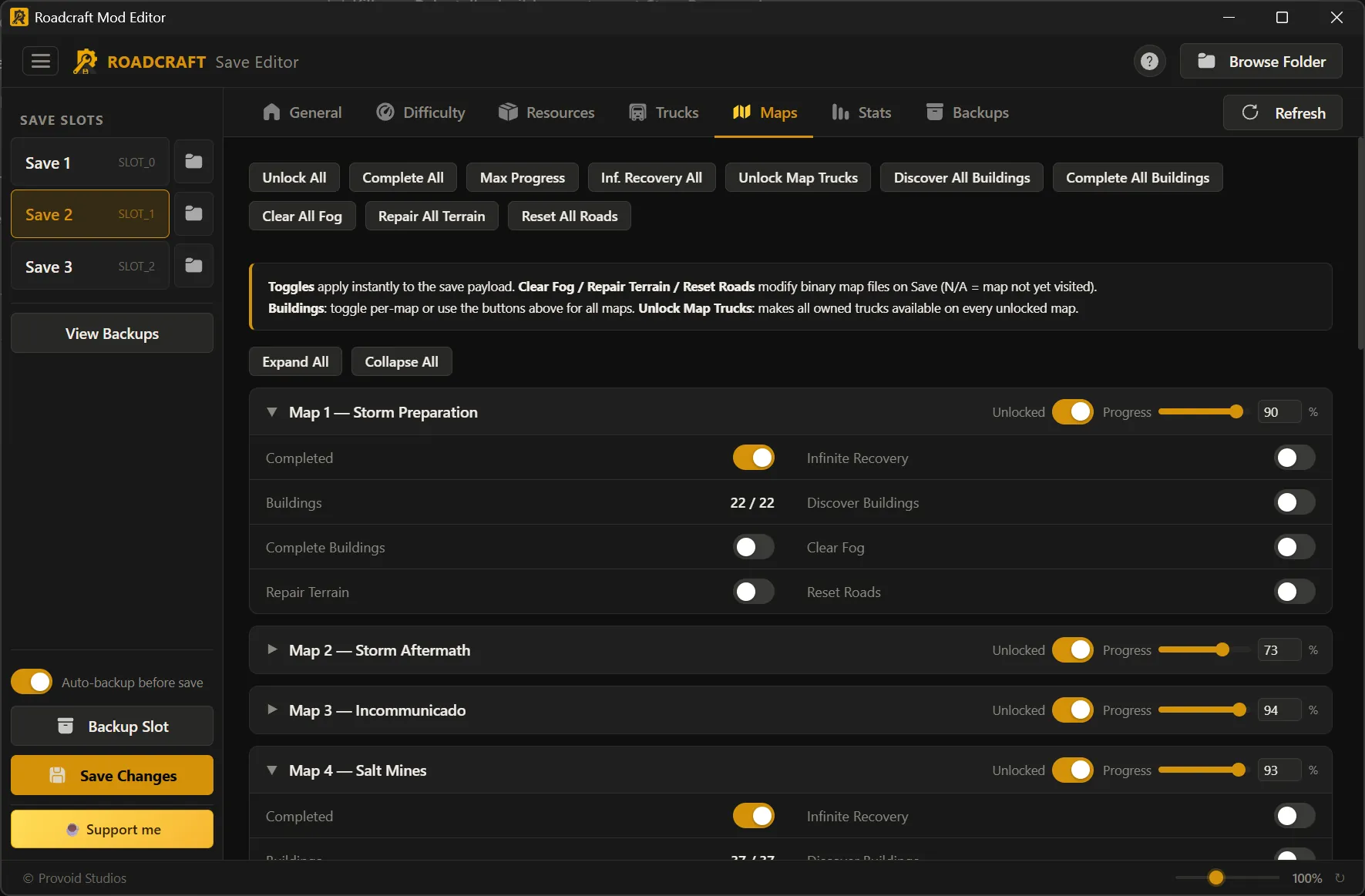
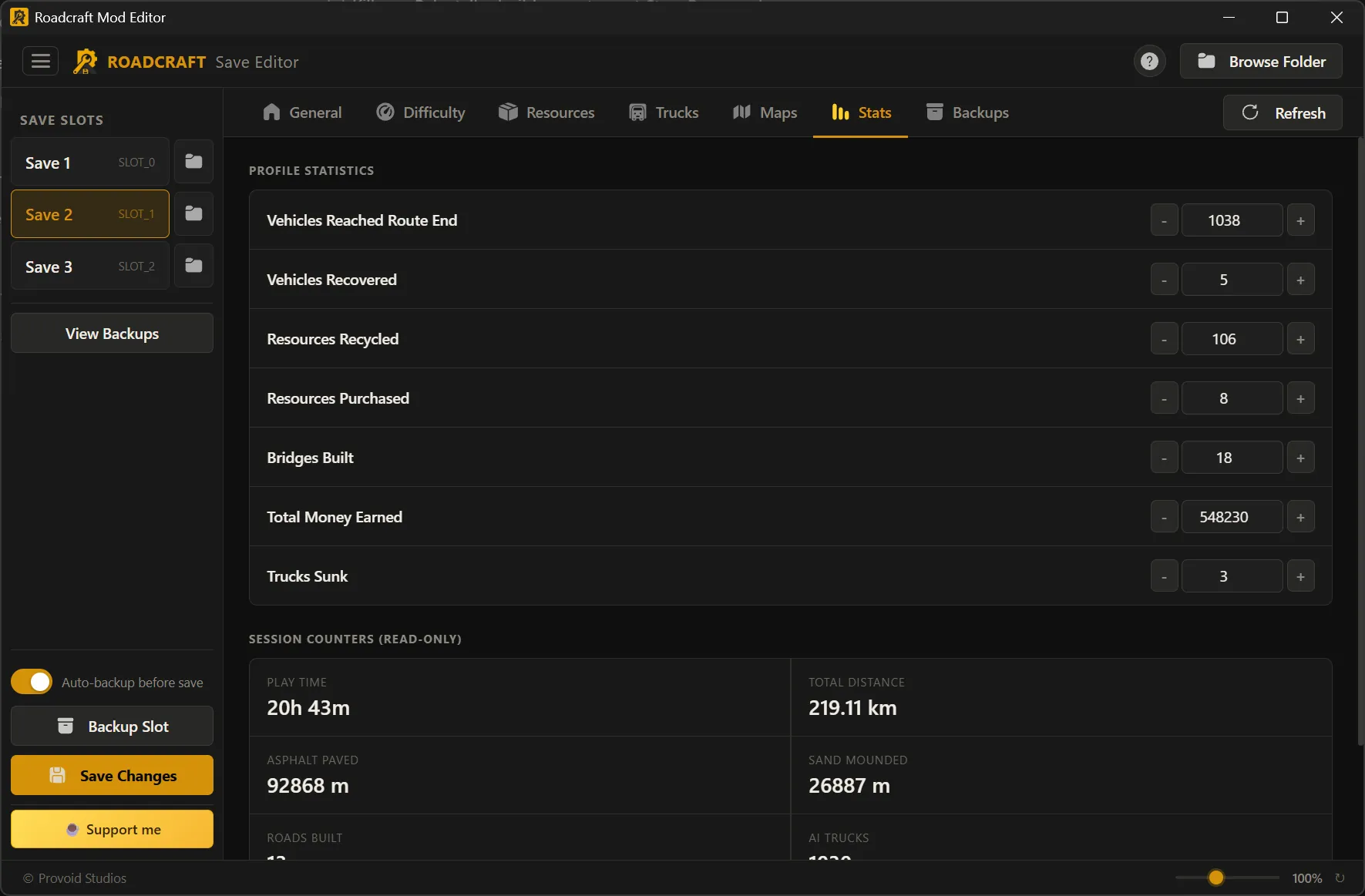
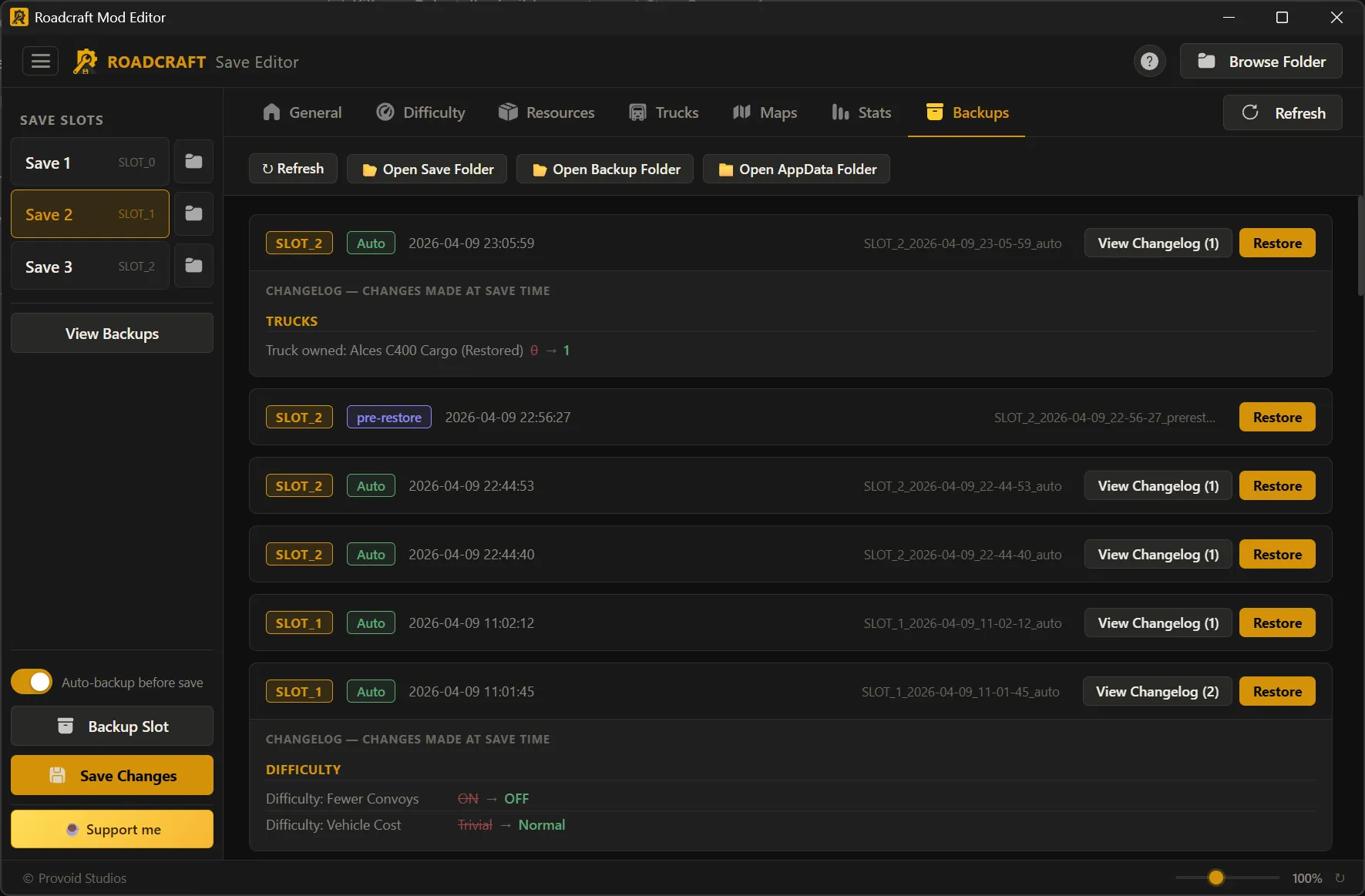
 Save Editor — every tab
 Vehicle Editor — every tab
 Mod Menu — categories & flows